;%20}%20.cls-2,%20.cls-3%20{%20fill:%20%23fff;%20}%20.cls-3%20{%20stroke-width:%200px;%20}%20%3c/style%3e%3cclipPath%20id='clippath'%3e%3cpath%20class='cls-3'%20d='M27.79,132.08H0V1.94h94.23v24.67H27.79v32.25h55.35v24.67H27.79v48.56ZM128.8,132.08h-29.52L148.03,1.94h35.75l48.75,130.15h-30.5l-10.29-28.94h-52.46l-10.48,28.94ZM157.73,51.67l-10.1,27.98h35.56l-9.92-27.98-7.77-27.58-7.77,27.58ZM271.76,132.08h-27.79V1.94h27.02l46.23,67.98,11.83,20.4-1.75-30.69V1.94h27.79v130.15h-26.42l-47.4-68.56-11.67-19.23,2.15,32.23v55.56ZM426.18,133.65c-16.18,0-29.2-5.79-39.04-17.38-9.85-11.59-14.77-28.08-14.77-49.46,0-19.8,5.79-35.89,17.38-48.25,11.59-12.38,27.63-18.56,48.1-18.56,13.72,0,25.59,3.02,35.63,9.04,10.04,6.02,17.32,14.46,21.85,25.33l-23.5,17.88c-1.81-7.64-5.66-13.82-11.56-18.54-5.89-4.73-13.36-7.1-22.42-7.1-11.67,0-20.52,3.6-26.54,10.79-6.02,7.18-9.02,16.99-9.02,29.42s3.04,22.64,9.13,29.83c6.09,7.18,14.65,10.77,25.65,10.77,16.05,0,26.94-7.57,32.65-22.73h-35.75v-22.33h62.35v69.73h-18.46l-6.6-47.4c-.64,15.41-4.89,27.42-12.73,36.04-7.83,8.61-18.61,12.92-32.33,12.92ZM535.93,132.08h-29.52L555.16,1.94h35.75l48.75,130.15h-30.5l-10.29-28.94h-52.46l-10.48,28.94ZM564.87,51.67l-10.1,27.98h35.56l-9.92-27.98-7.77-27.58-7.77,27.58ZM709.98,132.08h-27.79V26.6h-38.83V1.94h105.46v24.67h-38.83v105.48ZM857.6,132.08h-95.58V1.94h95.58v24.67h-67.79v27.4h56.71v24.67h-56.71v28.75h67.79v24.67ZM885.56,132.08h0c-8.15,0-14.76-6.61-14.76-14.76v-.58c0-8.15,6.61-14.76,14.76-14.76h0c8.15,0,14.76,6.61,14.76,14.76v.58c0,8.15-6.61,14.76-14.76,14.76Z'/%3e%3c/clipPath%3e%3c/defs%3e%3cg%20id='Ebene_1-2'%20data-name='Ebene%201'%3e%3cg%3e%3cpath%20class='cls-2'%20d='M27.79,132.08H0V1.94h94.23v24.67H27.79v32.25h55.35v24.67H27.79v48.56ZM128.8,132.08h-29.52L148.03,1.94h35.75l48.75,130.15h-30.5l-10.29-28.94h-52.46l-10.48,28.94ZM157.73,51.67l-10.1,27.98h35.56l-9.92-27.98-7.77-27.58-7.77,27.58ZM271.76,132.08h-27.79V1.94h27.02l46.23,67.98,11.83,20.4-1.75-30.69V1.94h27.79v130.15h-26.42l-47.4-68.56-11.67-19.23,2.15,32.23v55.56ZM426.18,133.65c-16.18,0-29.2-5.79-39.04-17.38-9.85-11.59-14.77-28.08-14.77-49.46,0-19.8,5.79-35.89,17.38-48.25,11.59-12.38,27.63-18.56,48.1-18.56,13.72,0,25.59,3.02,35.63,9.04,10.04,6.02,17.32,14.46,21.85,25.33l-23.5,17.88c-1.81-7.64-5.66-13.82-11.56-18.54-5.89-4.73-13.36-7.1-22.42-7.1-11.67,0-20.52,3.6-26.54,10.79-6.02,7.18-9.02,16.99-9.02,29.42s3.04,22.64,9.13,29.83c6.09,7.18,14.65,10.77,25.65,10.77,16.05,0,26.94-7.57,32.65-22.73h-35.75v-22.33h62.35v69.73h-18.46l-6.6-47.4c-.64,15.41-4.89,27.42-12.73,36.04-7.83,8.61-18.61,12.92-32.33,12.92ZM535.93,132.08h-29.52L555.16,1.94h35.75l48.75,130.15h-30.5l-10.29-28.94h-52.46l-10.48,28.94ZM564.87,51.67l-10.1,27.98h35.56l-9.92-27.98-7.77-27.58-7.77,27.58ZM709.98,132.08h-27.79V26.6h-38.83V1.94h105.46v24.67h-38.83v105.48ZM857.6,132.08h-95.58V1.94h95.58v24.67h-67.79v27.4h56.71v24.67h-56.71v28.75h67.79v24.67ZM885.56,132.08h0c-8.15,0-14.76-6.61-14.76-14.76v-.58c0-8.15,6.61-14.76,14.76-14.76h0c8.15,0,14.76,6.61,14.76,14.76v.58c0,8.15-6.61,14.76-14.76,14.76Z'/%3e%3cg%20class='cls-1'%3e%3crect%20class='cls-3'%20x='-27.9'%20y='-32.28'%20width='934.94'%20height='189.98'/%3e%3c/g%3e%3c/g%3e%3c/g%3e%3c/svg%3e)
The Fangate × KVIQA integration lets you send Fangate drops straight from the KVIQA Telegram CRM — with sales, attribution, and earnings flowing back into your KVIQA dashboard automatically. This guide walks through the full setup from scratch, assuming you already have a KVIQA account but nothing on the Fangate side yet.
Total time end-to-end: about 15 minutes once your media is ready to upload.
Prefer to watch? Full video walkthrough
Follow the same steps below, end-to-end.
What you'll need before starting
- An active KVIQA account (creator or agency).
- The media files you want to sell (videos, photos, or sets).
- ID and payout info ready for Fangate's KYC step.
Step 1 — Create your Fangate account
Sign up on Fangate and complete the standard onboarding. Two settings matter here:
- KYC. Complete identity verification before you try to publish or generate an API key. Most account features stay locked until KYC passes.
- Currency. Choose USD when creating the account. KVIQA assumes a single currency per creator, and mixing currencies will break price display and chatter commission math downstream. Don't skip this — it's set at account creation and is awkward to change later.
Step 2 — Upload your media library
On Fangate, upload each item you want to sell. The upload flow is one file at a time, so block out a focused chunk of time if you have a large catalog. For each item:
- Add a clear description. This is what surfaces inside the KVIQA vault picker, so chatters can find the right item quickly when a fan asks for something specific. Short, scannable titles work best.
- Set a base price. The base price barely matters because the chatter overrides it for every fan at send time. Fangate requires a minimum of $5, so put at least that. Beyond the floor, pick whatever feels right — you'll edit it anyway when you push the PPV from the Telegram CRM.
Step 3 — Build any multi-item bundles on Fangate
If you ever want to send more than one media item in a single PPV (for example, three videos for $20), you have to build that bundle on Fangate first. The send flow combines one Fangate product per payment link, so multi-item offers must already exist as a single packaged product on Fangate.
Build every bundle you plan to push regularly, give each one a clear name, and set the bundle price. Once a bundle exists on Fangate, it shows up in the KVIQA vault picker as a single sendable product, indistinguishable from an individual item at send time.
Skip this step if you only ever sell single items.
Step 4 — Generate your Fangate API key
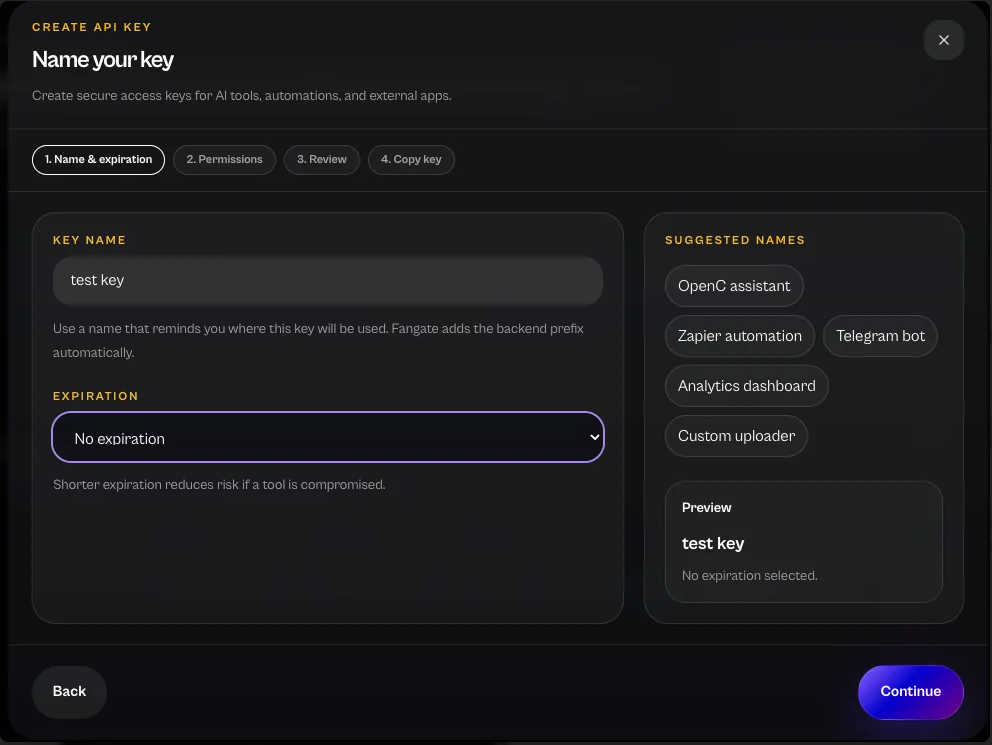
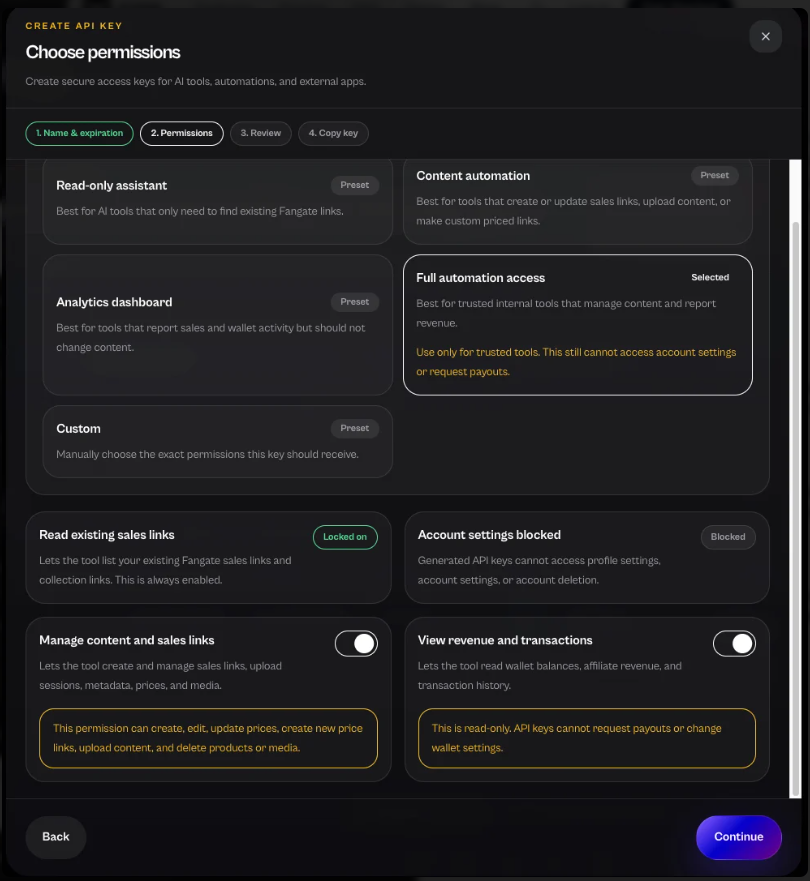
On Fangate, go to Settings → API Keys and create a new API key. The integration uses several Fangate endpoints (catalog read, sale events, payout data), so a scoped key with missing permissions will appear to connect but then silently fail to sync your vault.
1. Name the key and pick an expiration. "No expiration" is fine for an internal automation key.
2. Choose Full automation access and make sure both Manage content and sales links and View revenue and transactions are toggled on.
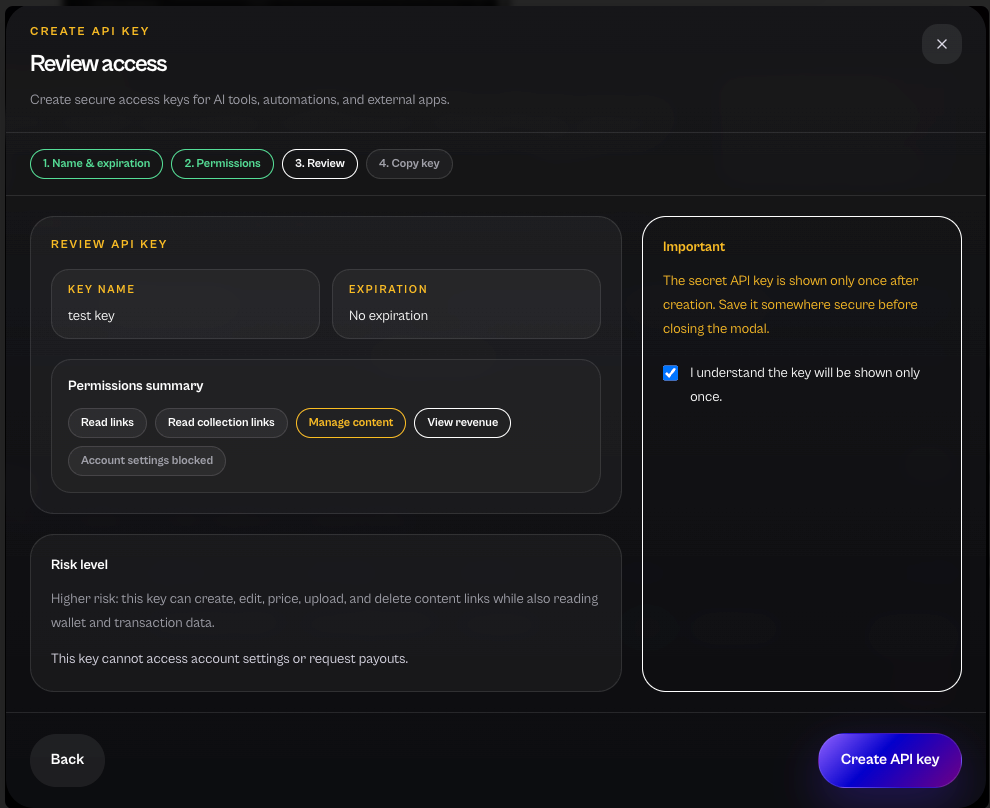
3. Review the permission summary and confirm the "shown only once" checkbox before creating the key.
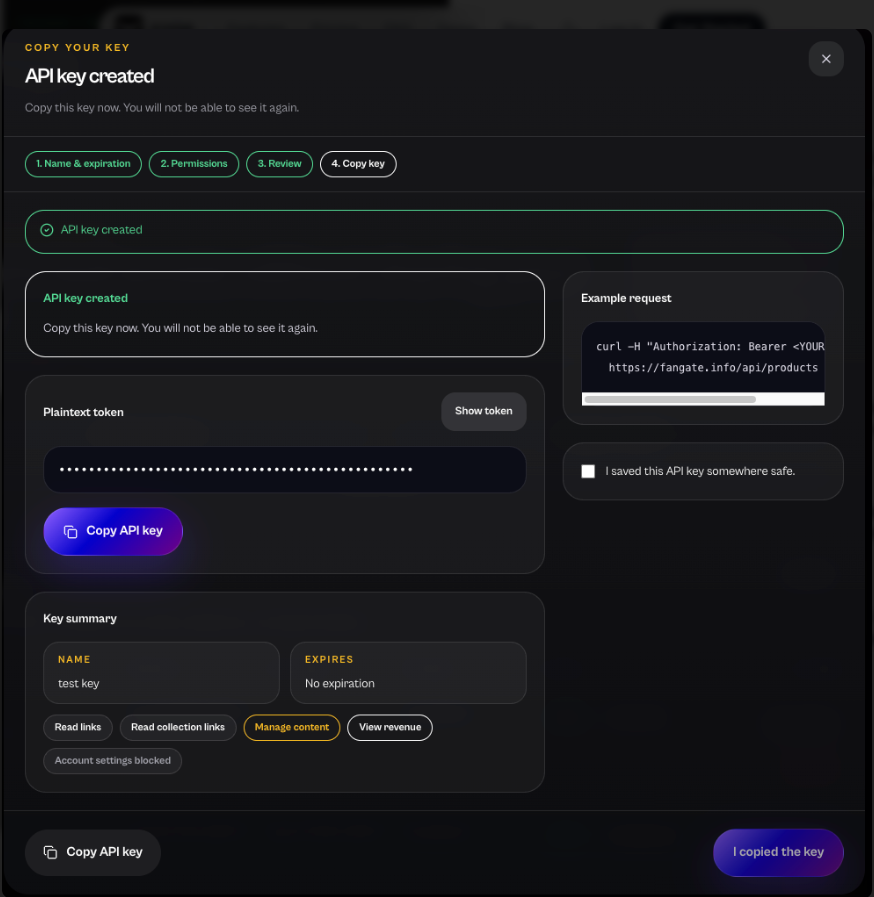
4. Press Show token, then Copy API key. You will not see this value again, so paste it into KVIQA in the next step before closing the dialog.
Step 5 — Connect Fangate in KVIQA TeamBoard
Open the KVIQA dashboard and go to TeamBoard. Find the creator you want to connect Fangate for, and double-click their row to open the creator detail view. Scroll down to the Vault section and press Connect Vault.
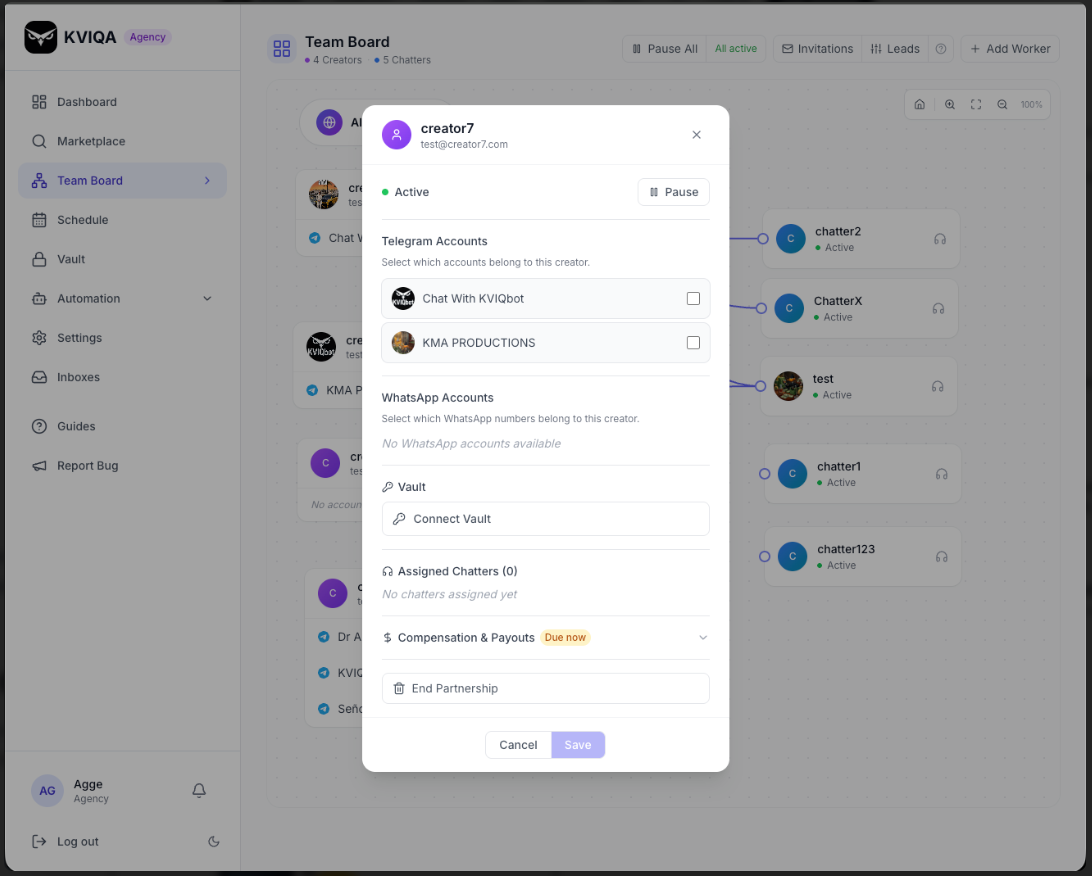
Paste the Fangate API key into the input and press Connect. Within a few seconds the vault will sync. Every item and every bundle from Fangate becomes available in the KVIQA vault picker for that creator.
Agencies: do this once per creator. Each creator's Fangate vault is scoped to that creator and their assigned chatters — there is no cross-creator leak.
Step 6 — Send your first Fangate PPV
Switch over to the Telegram CRM and open any conversation. Tap the vault button in the composer, filter to the creator you just connected, and pick the Fangate item (or bundle) you want to send.
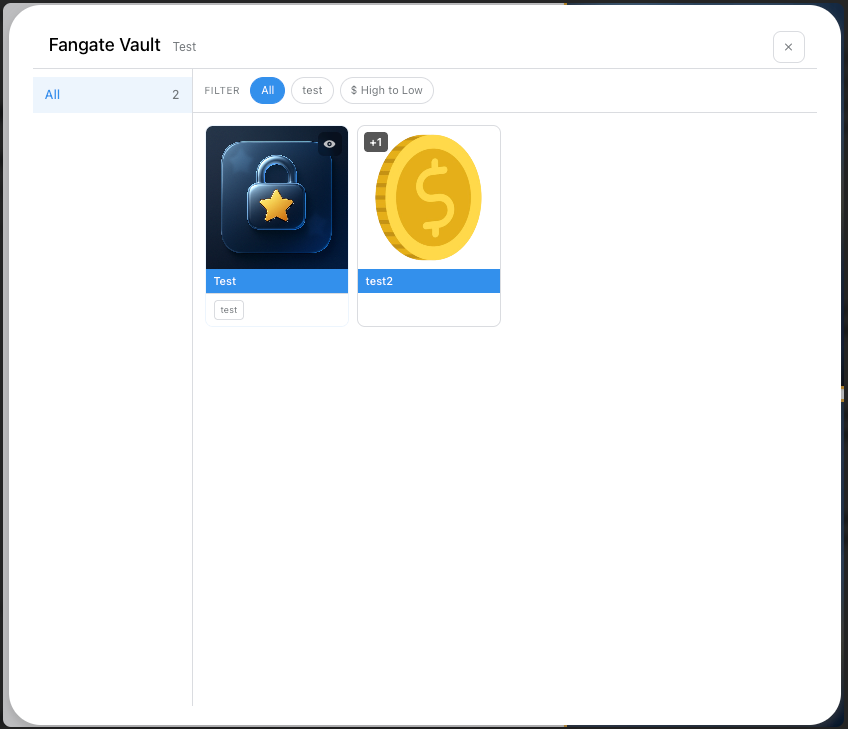
- One product per send. A PPV message carries a single Fangate payment link. For multi-item offers, send a premade bundle instead of combining items at send time.
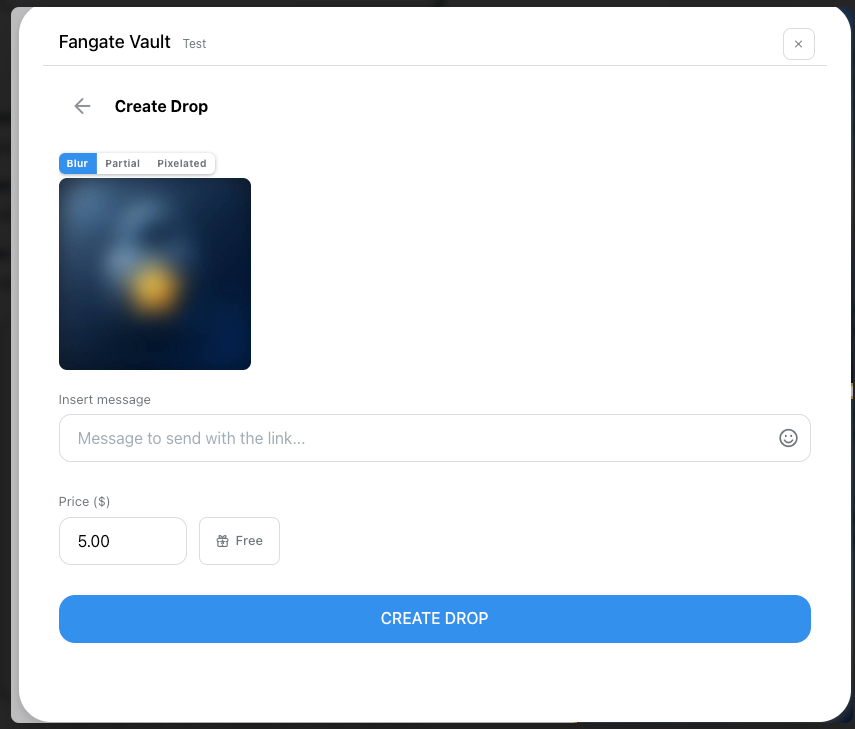
- Price is editable per send. The base price you set on Fangate pre-fills the price field, but you can override it for this specific fan before hitting send.
- Unlocks land in the timeline. When the fan pays, the unlock shows up in the conversation timeline within seconds, and the sale is attributed to the chatter who sent it.
What gets tracked automatically
Once the vault is connected, you don't have to touch Fangate again on a day-to-day basis. KVIQA handles:
- Sale events flowing into the conversation timeline and the earnings dashboard.
- Per-chatter attribution for commission calculation.
- Per-fan unlock tagging, so the conversation timeline shows who already bought what and chatters can avoid re-pitching already-unlocked content.
- Vault refresh whenever you add new items on Fangate — no reconnect needed.
Common gotchas
- Currency mismatch. If you accidentally created the Fangate account in a non-USD currency, prices will display oddly in KVIQA. The cleanest fix today is to create a fresh Fangate account in USD and reconnect.
- Scoped API key. If items don't show up in the vault picker after a minute, regenerate the API key with full permissions and reconnect in TeamBoard.
- Forgetting to make bundles. The send flow is one link at a time. If a chatter can't find the "3 videos for $20" bundle in the picker, it's because nobody built it on Fangate yet.
- Sending before KYC clears. An unverified Fangate account can still generate an API key in some flows, but sales will fail. Confirm KYC is green before you push the first PPV.
Ready to wire it up?
Create your Fangate account, complete KYC, generate your API key, and paste it into KVIQA TeamBoard. From that moment on, every Telegram conversation in KVIQA can sell Fangate drops with full attribution flowing back to your dashboard.
Want to learn more about KVIQA?
Use our affiliate link and get one month free. Sign up through KVIQA with the promo code FANGATELAUNCH and enjoy your first month at no cost. Explore their Telegram CRM, automation tools, and creator management platform built for agencies and independent creators.