;%20}%20.cls-2,%20.cls-3%20{%20fill:%20%23fff;%20}%20.cls-3%20{%20stroke-width:%200px;%20}%20%3c/style%3e%3cclipPath%20id='clippath'%3e%3cpath%20class='cls-3'%20d='M27.79,132.08H0V1.94h94.23v24.67H27.79v32.25h55.35v24.67H27.79v48.56ZM128.8,132.08h-29.52L148.03,1.94h35.75l48.75,130.15h-30.5l-10.29-28.94h-52.46l-10.48,28.94ZM157.73,51.67l-10.1,27.98h35.56l-9.92-27.98-7.77-27.58-7.77,27.58ZM271.76,132.08h-27.79V1.94h27.02l46.23,67.98,11.83,20.4-1.75-30.69V1.94h27.79v130.15h-26.42l-47.4-68.56-11.67-19.23,2.15,32.23v55.56ZM426.18,133.65c-16.18,0-29.2-5.79-39.04-17.38-9.85-11.59-14.77-28.08-14.77-49.46,0-19.8,5.79-35.89,17.38-48.25,11.59-12.38,27.63-18.56,48.1-18.56,13.72,0,25.59,3.02,35.63,9.04,10.04,6.02,17.32,14.46,21.85,25.33l-23.5,17.88c-1.81-7.64-5.66-13.82-11.56-18.54-5.89-4.73-13.36-7.1-22.42-7.1-11.67,0-20.52,3.6-26.54,10.79-6.02,7.18-9.02,16.99-9.02,29.42s3.04,22.64,9.13,29.83c6.09,7.18,14.65,10.77,25.65,10.77,16.05,0,26.94-7.57,32.65-22.73h-35.75v-22.33h62.35v69.73h-18.46l-6.6-47.4c-.64,15.41-4.89,27.42-12.73,36.04-7.83,8.61-18.61,12.92-32.33,12.92ZM535.93,132.08h-29.52L555.16,1.94h35.75l48.75,130.15h-30.5l-10.29-28.94h-52.46l-10.48,28.94ZM564.87,51.67l-10.1,27.98h35.56l-9.92-27.98-7.77-27.58-7.77,27.58ZM709.98,132.08h-27.79V26.6h-38.83V1.94h105.46v24.67h-38.83v105.48ZM857.6,132.08h-95.58V1.94h95.58v24.67h-67.79v27.4h56.71v24.67h-56.71v28.75h67.79v24.67ZM885.56,132.08h0c-8.15,0-14.76-6.61-14.76-14.76v-.58c0-8.15,6.61-14.76,14.76-14.76h0c8.15,0,14.76,6.61,14.76,14.76v.58c0,8.15-6.61,14.76-14.76,14.76Z'/%3e%3c/clipPath%3e%3c/defs%3e%3cg%20id='Ebene_1-2'%20data-name='Ebene%201'%3e%3cg%3e%3cpath%20class='cls-2'%20d='M27.79,132.08H0V1.94h94.23v24.67H27.79v32.25h55.35v24.67H27.79v48.56ZM128.8,132.08h-29.52L148.03,1.94h35.75l48.75,130.15h-30.5l-10.29-28.94h-52.46l-10.48,28.94ZM157.73,51.67l-10.1,27.98h35.56l-9.92-27.98-7.77-27.58-7.77,27.58ZM271.76,132.08h-27.79V1.94h27.02l46.23,67.98,11.83,20.4-1.75-30.69V1.94h27.79v130.15h-26.42l-47.4-68.56-11.67-19.23,2.15,32.23v55.56ZM426.18,133.65c-16.18,0-29.2-5.79-39.04-17.38-9.85-11.59-14.77-28.08-14.77-49.46,0-19.8,5.79-35.89,17.38-48.25,11.59-12.38,27.63-18.56,48.1-18.56,13.72,0,25.59,3.02,35.63,9.04,10.04,6.02,17.32,14.46,21.85,25.33l-23.5,17.88c-1.81-7.64-5.66-13.82-11.56-18.54-5.89-4.73-13.36-7.1-22.42-7.1-11.67,0-20.52,3.6-26.54,10.79-6.02,7.18-9.02,16.99-9.02,29.42s3.04,22.64,9.13,29.83c6.09,7.18,14.65,10.77,25.65,10.77,16.05,0,26.94-7.57,32.65-22.73h-35.75v-22.33h62.35v69.73h-18.46l-6.6-47.4c-.64,15.41-4.89,27.42-12.73,36.04-7.83,8.61-18.61,12.92-32.33,12.92ZM535.93,132.08h-29.52L555.16,1.94h35.75l48.75,130.15h-30.5l-10.29-28.94h-52.46l-10.48,28.94ZM564.87,51.67l-10.1,27.98h35.56l-9.92-27.98-7.77-27.58-7.77,27.58ZM709.98,132.08h-27.79V26.6h-38.83V1.94h105.46v24.67h-38.83v105.48ZM857.6,132.08h-95.58V1.94h95.58v24.67h-67.79v27.4h56.71v24.67h-56.71v28.75h67.79v24.67ZM885.56,132.08h0c-8.15,0-14.76-6.61-14.76-14.76v-.58c0-8.15,6.61-14.76,14.76-14.76h0c8.15,0,14.76,6.61,14.76,14.76v.58c0,8.15-6.61,14.76-14.76,14.76Z'/%3e%3cg%20class='cls-1'%3e%3crect%20class='cls-3'%20x='-27.9'%20y='-32.28'%20width='934.94'%20height='189.98'/%3e%3c/g%3e%3c/g%3e%3c/g%3e%3c/svg%3e)
Cloud import
Your library is already in the cloud. Bring it over in one go.
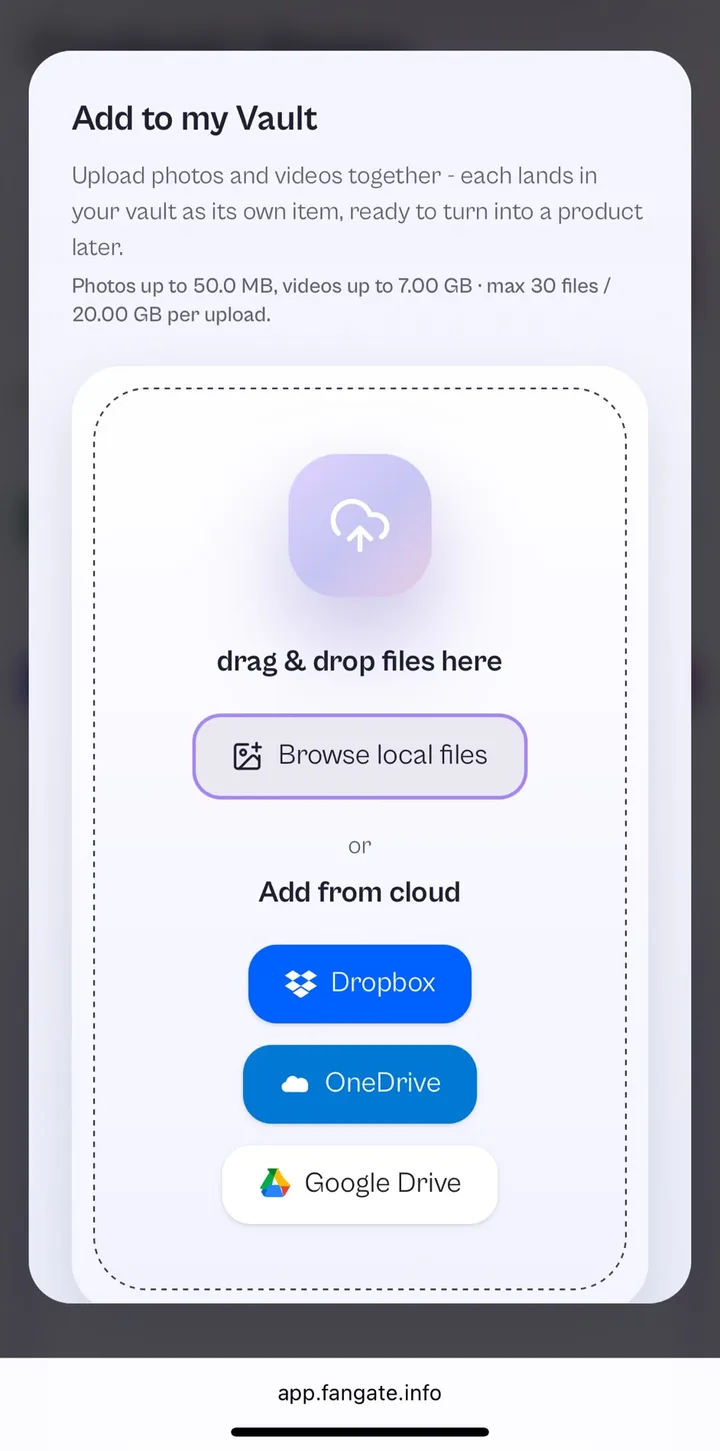
Pick files in Dropbox, OneDrive or Google Drive and they land in your Fangate vault, ready to become products. Your phone never has to download them first.
At a glance
Sources and limits
Where your files can come from
 Google Drive
 Dropbox
 OneDrive
Photos and videos in all common formats, including HEIC, MOV and MKV.
| Photos | up to 50 MB each |
|---|---|
| Videos | up to 7 GB each |
| Per import | up to 30 files or 20 GB |
| At the same time | up to 4 files processed in parallel |
How it works
From your drive to a product
- 1
Choose “Add from cloud”
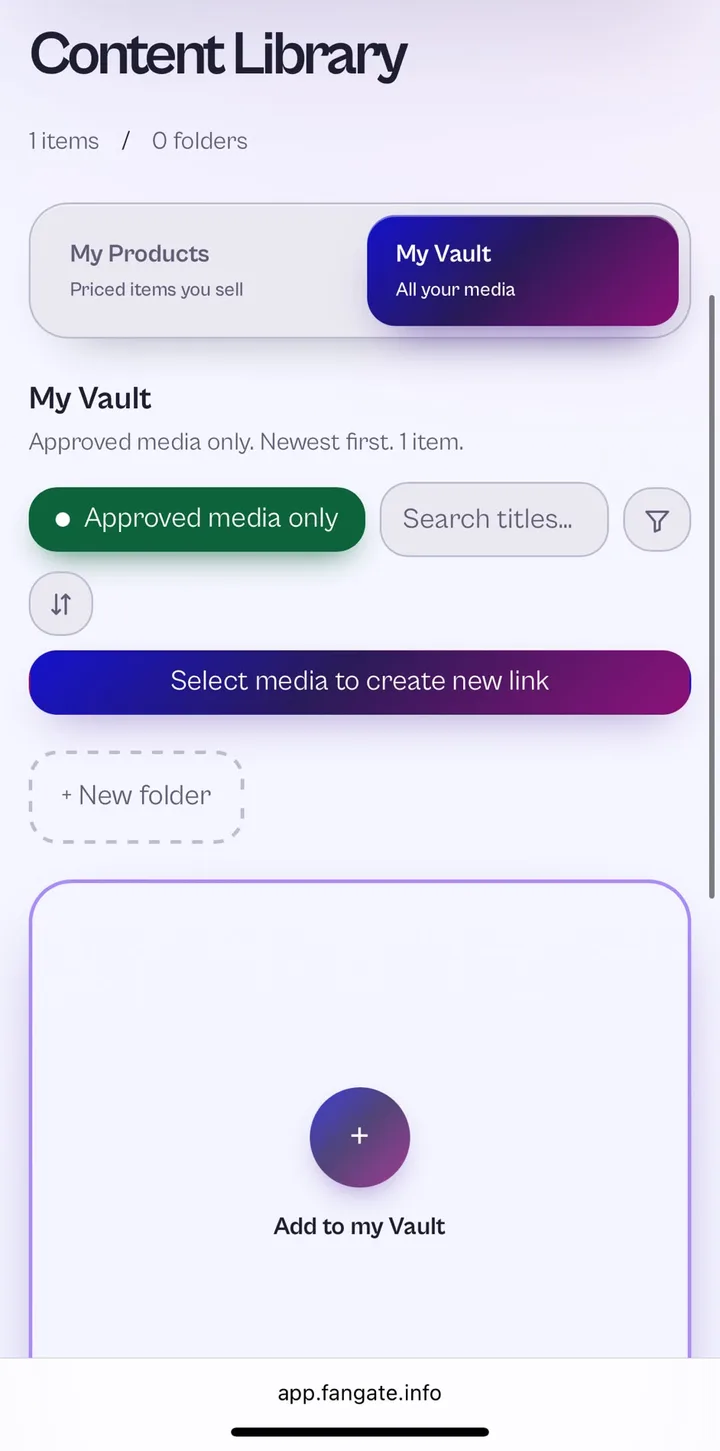
In your vault or while creating a sales link, next to “Browse local files”.
- 2
Pick the files
Sign in with Dropbox, OneDrive or Google Drive and select what you want to bring over.
- 3
Review the list
Imported files appear as items in your vault. Rename them, tag other people who appear in them, or remove what you do not need.
- 4
Declare and confirm
Confirm the consents and say whether any file is AI content. Then the content check runs, as it does for every upload.
Details that matter
Made for big libraries
Duplicates skipped
A file you already imported is recognised and left out, even when you select it again.
Nothing goes live unchecked
Imports get the same content check, consent step and AI declaration as uploads from your device.
Batches that keep going
One skipped or failed file does not stop the rest of the import.
Verified creators only
Only verified accounts can import, the same rule as for every upload.
Ready for agencies
Moving a model's archive to Fangate is one import instead of a week of re-uploads.
Works from the phone
Start an import from your phone without filling its storage or burning mobile data.
The full launch story is in the blog post Introducing Cloud Import.
Good to know
Which cloud services can I import from?
Dropbox, OneDrive and Google Drive. You sign in with the provider and pick the files there.
How big can the files be?
Photos up to 50 MB and videos up to 7 GB each, with up to 30 files or 20 GB per import.
What if I pick a file I already imported?
Fangate recognises it and skips it, so your vault does not fill up with copies.
Are imported files checked like normal uploads?
Yes. They go through the same content check, the same consent step for other people in the content and the same AI declaration as files from your device.
Can I close the browser while it runs?
Keep the window open until the import finishes. Fangate tells you when every file is in your vault.
Who can use it?
Every verified creator, and agencies working on their models' accounts.
Move your library over this week.
Create your account, verify once and import your first batch from the cloud.
Create your free account